One Clinic Inbox for WhatsApp, Instagram and Messenger
Keep track of the conversation between consultations. Bring connected channels into your clinic workspace and link each discussion to the right patient.

In this article
You finish a consultation and open WhatsApp to answer an appointment question. Then you remember an Instagram enquiry about a first visit and a Messenger conversation you meant to follow up. Before returning to the meal plan on your desk, you are reconstructing what happened in three different places.
For an independent dietitian, answering messages is part of running the practice. The difficult part is recovering the context every time you switch apps. This guide gives you a practical message-review routine and explains how Clynevia’s inbox brings supported, connected channels into your clinic workspace.
- Identify the request and its next action before moving to another conversation.
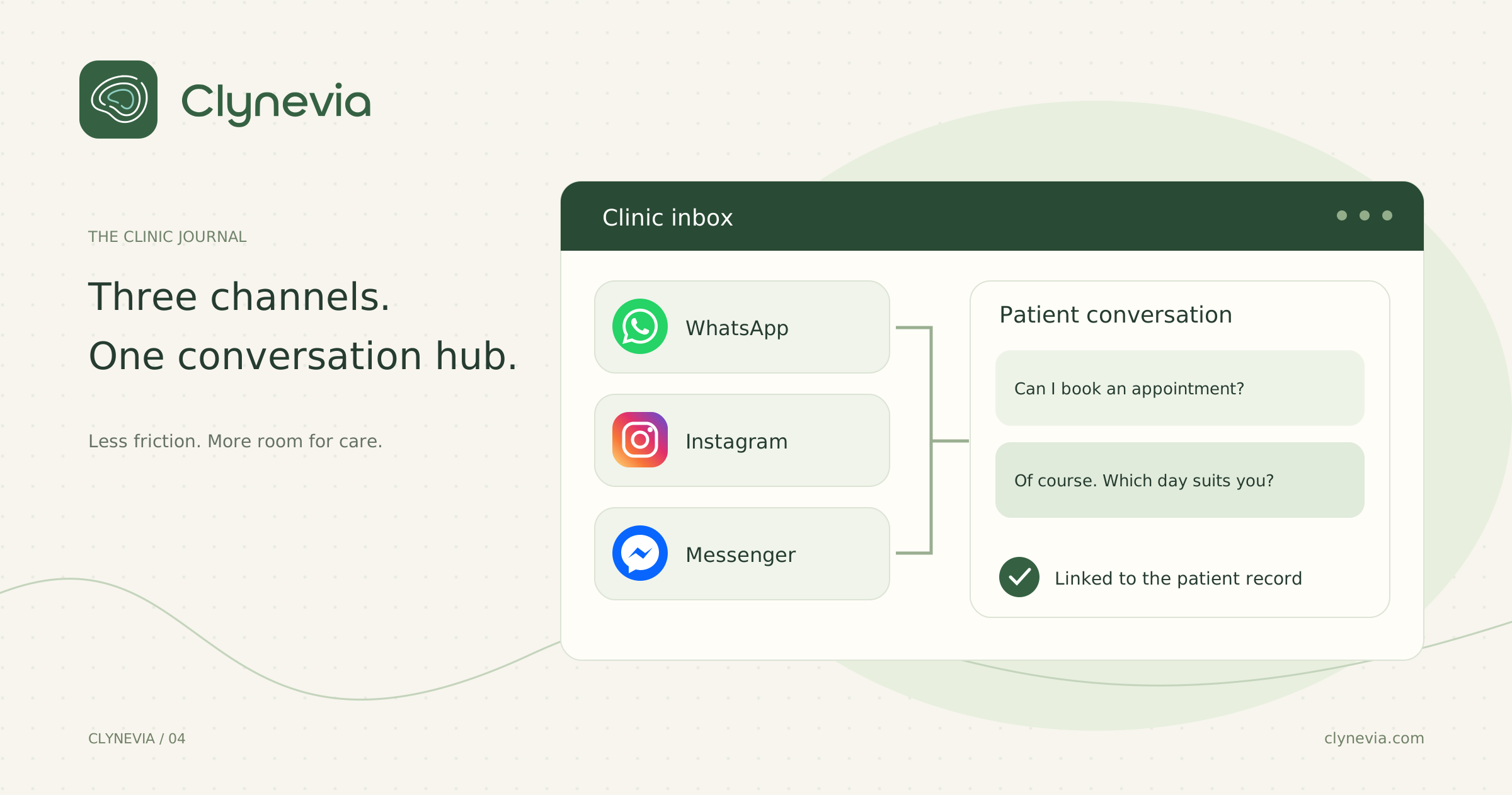
- Clynevia brings conversations from connected WhatsApp, Instagram and Messenger accounts into one inbox, with search and replies inside the workspace.
- Link a conversation to the correct patient record after checking the person’s identity.
- Feature activation and channel connection come first. A shared inbox does not automatically merge identities across social accounts.
The work behind a short message
“Can I change my appointment?” takes seconds to read. Answering it may require identifying the sender, checking the existing booking and finding an alternative. If their Instagram handle differs from the name in your records, you have another task before you can address the request itself.
Reading a message is also different from completing the work it creates. You might open a question between consultations without having time to check your calendar. The message is now read, but the request remains unfinished. A useful review routine starts with one question: what needs to happen next?
A three-step routine for clinic messages
1. Identify the request before drafting the reply
Start by deciding whether the message concerns general information, an appointment, a meal plan or a follow-up that needs the patient’s record. These are working categories for you, not a promise of software tags. Their purpose is to tell you whether you can answer now or need to check something first.
A question about opening hours needs a different response from a question about someone’s current plan. You can keep a clear wording for common administrative answers and review it before sending. For anything requiring clinical context, give yourself time to consult the record. Clearing the inbox should not become more important than understanding the request.
2. Confirm the person, then connect the conversation
Consider an illustrative example: a patient messages through an Instagram nickname, while your clinic record uses their full name. Check who you are speaking to before linking the conversation. A similar name or familiar profile picture is not enough to confidently attach a message to someone’s record.
Once confirmed, the link gives you a reliable connection between the conversation and the patient file. You do not have to rediscover that relationship every time you return. Someone who is only enquiring may not have a patient record yet; understand their request before treating them as an existing patient.
3. Leave a clear next step
A useful reply makes the current situation clear. Instead of “OK,” say what fits the request: “I’ll check the available appointments and get back to you,” or “Your request has arrived; the appointment still needs confirmation.” This distinguishes receiving a message from making a decision and tells the sender what to expect.
Choose message-review times that fit your consultation schedule and communicate realistic response expectations. A single inbox helps you organize the work; it does not require you to be available all day. Before closing the clinic, revisit the requests you promised to follow up rather than starting another search through every app.
Where Clynevia fits into that routine
Clynevia’s inbox displays conversations from the WhatsApp, Instagram and Messenger accounts connected to your clinic. You can filter by channel, search by name or identifier, open a conversation and write a reply inside the workspace. That gives you one place to review messages across the connected channels.
You can also search for a patient by name or phone number and link the conversation to their record. This is particularly useful when a social profile does not use the same name as your patient list. Review the match before accepting it: the software helps organize the relationship, while you confirm the correct person.
One inbox does not mean every account belonging to a person becomes a single conversation automatically. Conversations remain associated with their channels. Linking them to a patient record adds clinic context without pretending that a WhatsApp number and an Instagram handle are automatically the same identity.
How this differs from sharing a plan on WhatsApp
Plan sharing starts with something you have prepared: a plan link to send to your patient. The inbox handles another part of the day—receiving messages and replying from within Clynevia. Having a plan-sharing link does not, by itself, mean that a WhatsApp account is connected to receive conversations.
The two workflows serve different needs. If your broader challenge is scattered administration, read how to bring clinic work together instead of spreading it across five tools. An organized conversation is more useful when you know where to find the appointment, plan and record needed for the next action.
Start with one complete test conversation
Once the feature is enabled for your clinic and the appropriate account is connected, run a test without patient information. Receive a message, open it, write a reply and confirm that it arrives. Begin with your busiest channel, then connect the others. This lets you learn the workflow before relying on it between consultations.
Channel setup depends on the account configuration and required permissions. Replies also depend on the available reply window for each channel. A conversation appearing in the inbox is not a promise that a message can be sent at any time. If a reply fails, review the displayed status before assuming delivery or repeatedly sending it.
Questions before you start
01Does the inbox answer patients automatically?+
This article covers receiving conversations and writing replies from the clinic workspace. It does not promise automated responses or clinical decisions on your behalf.
02Do I need to connect all three channels immediately?+
Start with the account and channel that fit your practice once the feature is enabled. Each channel has its own connection setup; you do not need to change your whole routine at once.
03Is this the WhatsApp Business phone app?+
Clynevia is a clinic workspace that connects through the WhatsApp Business API. Using its inbox requires account connection. Keeping the same number on the phone app depends on account eligibility and the connection setup.
To see how this fits your practice, request a demo. We can review the channels you use and the appropriate connection setup before you begin.